# Super Assist
> A ready-made assistant panel for React apps that reads your pages and presses your buttons, in one package. Pages introduce themselves to it and lend it their actions; a project's agent on Super Assist answers, so the host writes no backend.
---
# Add an assistant to a Next.js app
> Sign up on Super Assist, create an agent and a project, and put the project's assistant beside a Next.js page it reads and acts on.
In this tutorial you sign up on Super Assist, create an agent and a project, and put the project's assistant beside an Orders page in a new Next.js app. The assistant replies from Super Assist, answers from what the page shows, and ships an order when you ask. You write no backend.
You need Node.js and npm.
An agent answers on your organization's AI spend. The Pro plan includes some every month; the Free plan runs agents only on credits bought in **Billing**. This tutorial uses Pro.
## 1. Sign up
1. Open [superassist.app/app/sign-up](https://superassist.app/app/sign-up), fill in your name, email and password, and press **Sign up**.
2. Open the verification link Super Assist emails you.
3. Name your organization and press **Create organization**.
4. In the sidebar, open **Billing** and press **Upgrade to Pro**.
## 2. Create an agent
The agent is the assistant that answers in your app: its instructions, its model, and the skills, databases and knowledge bases it may use.
1. Open **Agents** and press **New agent**.
2. Name it `shop-assistant`.
3. Above **Instructions**, press **Start from a template** and pick **General assistant**.
4. Press **Create agent**.
For a support agent with its skills ready, press **Install a template** instead and pick `saas-support`. [Templates](https://superassist.app/dashboard/templates.md) says what to replace before it goes live.
## 3. Create a project and copy its publishable key
The project is your app on Super Assist. It holds the publishable key your pages connect with, the origins it accepts, and the agent that answers.
1. Open **Projects** and press **New project**.
2. Name it `My shop`. **Default agent** already shows `shop-assistant`, your only agent. Press **Create**.
3. On the project's page, press **Copy** beside **Publishable key**. It starts with `pk_`.
The key is safe to ship in your app's bundle: it only opens threads with the project's agent. **Allowed origins** lists `http://localhost:3000`, where your app is about to run.
## 4. Create the app
Create a Next.js app with the default setup, TypeScript, Tailwind and the App Router, and install the library:
```bash
npx create-next-app@latest my-shop --yes
cd my-shop
npm install @super-assist/react
```
That one package brings the panel, its styles and the runtime.
Put the publishable key in `.env.local`:
```sh title="my-shop/.env.local"
NEXT_PUBLIC_SUPER_ASSIST_KEY=pk_...
```
## 5. Mount the panel
Create `app/assistant.tsx`. It imports the panel's styles, connects to your project with `useAssistedRuntime`, and renders the panel inside `AssistedProvider`:
```tsx title="my-shop/app/assistant.tsx"
"use client";
import type { ReactNode } from "react";
import { AssistedPanel, AssistedProvider, useAssistedRuntime } from "@super-assist/react";
import "@super-assist/react/styles.css";
export function Assistant({ children }: { children: ReactNode }) {
const runtime = useAssistedRuntime({ key: process.env.NEXT_PUBLIC_SUPER_ASSIST_KEY! });
return (
{children}
);
}
```
`threads` adds a menu of your threads to the panel's header. Super Assist keeps them.
In `app/layout.tsx`, wrap the children in `Assistant`. Keep the scaffold's fonts and metadata, and change only the body:
```tsx title="my-shop/app/layout.tsx"
import { Assistant } from "./assistant";
```
```tsx title="my-shop/app/layout.tsx"
{children}
```
## 6. See a reply
Replace `app/page.tsx` with a plain Orders page. Its orders live in state, so shipping one changes the page:
```tsx title="my-shop/app/page.tsx"
"use client";
import { useState } from "react";
type Order = { id: string; customer: string; status: "to ship" | "shipped" };
const seed: Order[] = [
{ id: "1042", customer: "Acme", status: "to ship" },
{ id: "1043", customer: "Globex", status: "to ship" },
{ id: "1045", customer: "Initech", status: "shipped" },
];
export default function Orders() {
const [orders, setOrders] = useState(seed);
const ship = (id: string) =>
setOrders((all) =>
all.map((order) => (order.id === id ? { ...order, status: "shipped" } : order)),
);
return (
);
}
```
Start the app:
```bash
npm run dev
```
Open `http://localhost:3000`. The three orders show, and an **Assistant** button sits in the bottom-right corner. Press it and the panel opens. Ask "What can you do?".
Your agent replies from Super Assist. It can't see the orders yet, because the page hasn't introduced itself.
## 7. Let the assistant read and act
Wrap the page in `AssistedPage`, which gives it a name, instructions for working there, and its content. The content is a function, read only when the assistant asks for it. Then wrap each **Ship** button in `AssistedAction`. Every row uses the name `ship_order` with its own `id`, so the assistant sees one action that picks a row by id:
```tsx title="my-shop/app/page.tsx"
"use client";
import { AssistedAction, AssistedPage } from "@super-assist/react";
import { useState } from "react";
type Order = { id: string; customer: string; status: "to ship" | "shipped" };
const seed: Order[] = [
{ id: "1042", customer: "Acme", status: "to ship" },
{ id: "1043", customer: "Globex", status: "to ship" },
{ id: "1045", customer: "Initech", status: "shipped" },
];
export default function Orders() {
const [orders, setOrders] = useState(seed);
const ship = (id: string) =>
setOrders((all) =>
all.map((order) => (order.id === id ? { ...order, status: "shipped" } : order)),
);
return (
orders}
>
);
}
```
The panel's header now reads "On Orders". Ask "Which orders are waiting to ship?".
The assistant calls `get_page_content` first, and its answer names Acme's #1042 and Globex's #1043.
Ask "Ship Globex's order."
The assistant calls `ship_order` with the id `1043`, which presses Globex's **Ship** button. The row now reads "shipped", its button is gone, and the assistant tells you the order shipped.
## What you built
A Next.js app whose assistant runs on Super Assist. The project's agent answers, the Orders page introduces itself and lends its content on demand, and each row lends an action the agent presses by id.
Next:
- [Make an action consequential](https://superassist.app/how-to/make-an-action-consequential.md), so the user presses it or approves it.
- [Lend a form's fields](https://superassist.app/how-to/lend-form-fields.md), so the assistant fills them.
- [Add `go_to_page`](https://superassist.app/how-to/add-go-to-page.md) once the app has more than one page.
- [Place the panel](https://superassist.app/how-to/place-the-panel.md) as a sheet or embedded, and [rearrange its parts](https://superassist.app/how-to/rearrange-the-panel.md).
- [Mount the devtools](https://superassist.app/how-to/mount-devtools.md) to see what the page lends.
- [Use the hosted runtime](https://superassist.app/how-to/use-the-hosted-runtime.md) to name your signed-in users, and to accept your production origin before you deploy.
- [How a turn is answered](https://superassist.app/explanation/how-a-turn-is-answered.md), from the project and its agent to what the page lends.
---
# Agents and skills
> Create the agent that answers in your app, write its instructions, pick its model, and give it skills, databases and knowledge bases.
An agent is what answers in your app: its instructions, its model, and the skills, databases and knowledge bases it may use. Every member can chat with it in the dashboard, and a project's end users reach it through the panel. This page covers the **Agents** and **Skills** pages of the dashboard.
## Create an agent
On **Agents**, press **New agent**, or [install a template](https://superassist.app/dashboard/templates.md) to start from a finished one.
- **Name**: lowercase letters, numbers and hyphens, up to 64 characters. Spaces become hyphens.
- **Description**: one line shown in the agents list.
- **Instructions**: what the agent is for and how it behaves. They are a Liquid template filled in at every turn, so `{{ organization.name }}` prints your organization's name. **Start from a template**, beside the label, pastes one of three starters: General assistant, Customer support or Data analyst.
- **Provider** and **Model**: Vercel AI Gateway with its catalog, or Workers AI. **Thinking before each reply** applies to the Anthropic and OpenAI models the catalog tags as reasoning, and is ignored elsewhere.
Then add what the agent may use. It reads every database you add and writes only where **Allow writes** is on. It searches every knowledge base you add. Press **Create agent**.
### What the instructions can print
| Variable | Prints |
| ------------------- | ------------------------------------------ |
| `today` | The date in UTC, like `Monday 2026-10-05` |
| `agent.name` | The agent's name, with `agent.description` |
| `organization.name` | Your organization's name |
| `skills` | Each skill's `name` and `description` |
| `databases` | Each database's `name` and `writable` |
A missing variable prints nothing. An instructions template that doesn't parse is refused, with the line that failed.
### What every agent already has
Four rules close every prompt, whatever the instructions say, so you don't write them: answer only from the instructions, the knowledge bases, the open page and tool results; one step at a time; claim an action done only when a tool call completed it; and say what a handoff or a consequential page action will do and wait for a yes. Every thread also has the `handoff` tool. See [Handoffs](https://superassist.app/dashboard/handoffs.md).
## Try the agent
The agent's page opens on **Chat**, the same panel your app shows, with your threads on the side. A member's test chat may pick another model and can fetch URLs, which an end user's thread can't. Test chats aren't counted in a project's conversations.
**Editor** holds the form above. On extra-large screens, **Configuration** lists the skills, databases, knowledge bases and rendered instructions beside the chat.
## Saving reaches running threads
Pressing **Save changes** sends the agent's configuration to every thread, members' and end users' alike. The model, tools, skills and thinking level apply from the next turn. Changed instructions arrive as a reminder on the thread's next message.
The configuration carries a copy of each skill's text, so a skill you edit reaches an agent on that agent's next save. Open the agent and press **Save changes** after editing its skills.
## Write a skill
A skill is a procedure every agent of the organization can read. The prompt lists each of the agent's skills by name and description on every turn; the agent loads a skill's instructions only when its description fits the request. So the description decides when the skill is used, and the instructions what it does.
On **Skills**, press **New skill**:
- **Name**: the same rule as an agent's.
- **What**, **Use when** and **Not for**: one sentence each. They save together as the skill's description, one labelled line each, up to 1024 characters. **Not for** keeps the agent from loading the skill on a request that only looks like a fit; name the neighbouring skill or the agent's own job there.
- **Instructions**: Markdown. Say when the skill applies, then the steps. Plain text, not Liquid.
Then add the skill to an agent on its editor's **Skills** group. Through the API, write the three lines into `description` yourself:
```text
What: Reviews a pull request against the team checklist.
Use when: Asked to review a pull request, a diff or a branch.
Not for: Writing the fix or reviewing a design doc.
```
The nine skills of the [SaaS support template](https://superassist.app/dashboard/templates.md) are worked examples.
## Databases
A database is the organization's own SQLite store. Create one on **Databases**, then shape its tables in the explorer or with the query API. An agent with a database gets two tools: one returns its schema, and one runs a single statement. A statement that writes to a database the agent may only read is rolled back. The Free plan includes 3 databases and the Pro plan 25.
---
# Knowledge bases
> Give an agent a help center or files to answer from, follow each source's runs, and see what it cites under the answer.
A knowledge base is a named body of content the agent searches while it answers: a crawled site, uploaded files, or both. Each one is made of sources, indexed on their own. Add a knowledge base to an agent and it searches the sources that are ready, answers from the passages it finds, and cites them under the answer.
## Create one and add sources
On **Knowledge**, press **New knowledge base**, name it, and press **Create knowledge base**. Then add sources on its page:
- **Add URL** crawls a public page and the pages under its path, such as a help center's home. Crawling starts at once.
- **Upload file** indexes one file as a source of its own. Plain text, code and markup up to 10 MiB; PDF, Office files, HTML, CSV and images up to 4 MiB. Images aren't read for text.
Each source shows **Indexing** with its progress, then **Ready** with its page count, or **Error** with the reason. The **Try a question** box on the knowledge base's page runs the same search the agents run, so you can check what it finds before an agent does.
### Crawl options
Set them when adding a URL, or later from the source's menu under **Edit crawl options**. Saving options doesn't crawl again; **Sync** the source afterwards.
| Option | Default | What it does |
| ---------------------- | -------------------- | ------------------------------------------------------------- |
| **Page limit** | 500 | The most pages to index. 500 is also the cap. |
| **Link depth** | Any | How many links to follow from the URL. |
| **Discovery** | Sitemaps and links | Where the crawl finds pages. |
| **Include patterns** | Under the URL's path | One per line. `*` matches within a path segment, `**` across. |
| **Exclude patterns** | None | One per line. Matching pages are skipped. |
| **Render JavaScript** | On | Needed for pages built in the browser. Off is faster. |
| **Include subdomains** | Off | Also crawl the same path on the site's subdomains. |
A site's Content Signals can refuse the crawl, which fails the run with that reason.
## Runs
Every sync is a run, shown newest first on the source's page with its stages: **Crawl**, **Store** and **Index** for a URL, **Upload** and **Index** for a file. A run lists every page it went through with **Indexed**, **Failed** and its reason, or **Not indexed**.
While a run goes, what the source indexed before stays searchable. When it finishes, unchanged pages are kept, changed pages are replaced, and pages the crawl no longer found are removed. **Cancel run** stops it and deletes nothing.
## Give it to an agent
Open the agent's editor, press **Add a knowledge base** under **Knowledge**, and save. The agent's prompt then names its knowledge bases and tells it to search them with `search_knowledge` before answering a question they may cover, to answer from the passages, and to cite no source the search didn't return.
A search returns up to 8 passages, each with its knowledge base, title, URL, score and text. The panel shows them under the answer as numbered chips, one per page or file, in the [sources card](https://superassist.app/components/cards/sources-card.md).
Deleting a knowledge base deletes its sources and their indexed content, so agents no longer find them.
---
# Templates
> Install a ready-made agent with its skills and databases in one step, replace its placeholders, and attach a knowledge base.
A template is a finished agent or skill, written as Markdown and bundled into Super Assist. Installing an agent template creates its databases with their tables, the agent, and each of its skills your organization doesn't already have by name. Your organization then owns copies it can edit. The templates themselves are public at [github.com/mertdogar/super-assist-templates](https://github.com/mertdogar/super-assist-templates).
## Install one
On **Agents**, press **Install a template** and pick one. The agent opens when it's installed.
The install reuses a skill of the same name, so installing a second template that shares a skill, or installing twice, keeps the skill you may have edited. An agent or database that already has the template's name stops the install, as does a plan limit.
## The SaaS support agent
`saas-support` supports the customers of a SaaS product from your help center, with sources. It works through problems, billing, cancellations, leads and feature requests, does or explains tasks on the open page, and hands off to your team when a person is needed.
| Skill | Does |
| ---------------------------- | ------------------------------------------------------------------------------ |
| `grounded-answer` | Answers a product question from the passages a knowledge base search returns |
| `troubleshooting` | Works through a problem one fix at a time, checking each result |
| `billing-and-account` | Answers plan and invoice questions and opens the billing page for changes |
| `cancel-or-pause` | Makes one retention offer, then cancels or pauses through the page or a person |
| `lead-capture` | Takes down a prospective buyer's contact and interest for sales |
| `feature-request` | Records a request for something the product doesn't do yet |
| `guide-me-through-this-page` | Teaches the open page one field or action at a time |
| `do-it-for-me` | Fills the open page's fields and presses its actions, after a yes |
| `escalate-to-human` | Hands the thread to a person with the `handoff` tool, after asking |
Its `captures` database holds a `lead` table and a `featureRequest` table. The two capture skills write to the page's form when the open page lends one, otherwise to these tables.
## Before you go live
The agent's instructions open with a note, in a Liquid comment the model never sees, listing the placeholders to replace in its skills:
- `[support hours]` in `escalate-to-human`: when your team replies to handoffs.
- `[billing page]` in `billing-and-account` and `cancel-or-pause`: where customers change their plan.
- `[plan names]` in `billing-and-account`: your plans' names.
- `[retention offer]` in `cancel-or-pause`: your one offer to a customer who wants to cancel.
Then:
1. Edit each skill on **Skills** and replace its placeholders.
2. Open the agent, press **Add a knowledge base** under **Knowledge**, and pick your help center. See [Knowledge bases](https://superassist.app/dashboard/knowledge-bases.md).
3. Press **Save changes** on the agent, so its threads get the edited skills.
4. Set **Support email** in **Settings**, so handoff alerts reach your team.
## What every template relies on
The agent's prompt already carries the core rules, the `handoff` tool, the knowledge base search and the page's lent tools, so the templates say only what is specific to them. [Agents and skills](https://superassist.app/dashboard/agents-and-skills.md) describes each.
---
# Handoffs
> What happens when an agent hands a conversation to a person, how the end user's panel shows it, and how a member reads the thread, replies and closes it.
A handoff is an agent passing a thread to a person at your organization. The person is alerted by email, reads the thread from the **Inbox**, and replies into it. The end user sees the reply in the panel, in the same thread, without a reload. The agent stays out of the thread until a member closes the handoff.
## How it starts
Every thread of every agent has the `handoff` tool. The agent calls it when the end user asks for a person or it can't help further, with a one-line reason, a summary of what the user needs and what was tried, and the user's contact when they gave one. The core rules make the agent say what the handoff does and wait for a yes first, and the `escalate-to-human` skill of the [SaaS support template](https://superassist.app/dashboard/templates.md) asks for an email on the way.
The agent isn't the only one watching. After each reply, a decision model reads the exchange and judges whether a person should take over: the end user asked for one, is frustrated or repeating themselves, asked for something outside the agent's purpose, or the agent couldn't answer. When it looks that way, the panel shows a **Talk to a person** button under the messages, which sends "I'd like to talk to a person." and the agent hands off. When the end user plainly asked for a person, the handoff opens at once with the reason "The user asked for a person", with no further turn. See [How a turn is answered](https://superassist.app/explanation/how-a-turn-is-answered.md#after-the-reply-a-decision-model-reads-the-exchange).
The handoff opens, and an email goes to the organization's **Support email** from **Settings**, or to the owner when none is set. Its subject names the agent and the reason, and its button opens the handoff in the dashboard.
## What the end user sees
Under the panel's composer, the thread reads **A person will reply here.** The end user can keep writing; the messages are kept for the person, and the agent doesn't answer them. Once a member has replied, the note reads **You're talking with .**, and each reply shows as that person's message under their name.
## Reply and close
**Inbox** in the sidebar holds the open handoffs under **Unassigned**, **Mine** and **Teammates**, and those closed today; **All closed** lists every closed handoff. Open one to read the whole thread, with the end user, the agent and each member named. Press **Claim** to take an unassigned handoff. The select beside **Close handoff** shows who holds it; pick another member, or **Unassigned**, to pass it on.
1. Write in **Reply to the end user in this thread** and press **Send reply**. The reply lands in the thread at once.
2. When the person's part is done, press **Close handoff**. The note under the composer goes away, and the agent answers the thread's next message again.
A closed handoff stays under **All closed** for the record.
---
# Journeys
> Walk end users through your app toward a goal, one step at a time: write a journey from your pages, choose what starts it, publish it, try it in your app, and read how far end users get.
A journey is an ordered set of up to ten steps that walks end users through your app toward a goal, such as creating their first order. Each step opens a page of your app, points at an action or field that page lends, and shows a title and a line or two of text beside it. End users see nothing of a journey until a member publishes it.
Journeys live under a project. Open the project and choose the **Journeys** tab. The list shows each journey by its goal with its name under it, whether it is a draft, published, or published with unpublished changes, what starts it, a bar per published step for the share of end users who reached it, and how many end users started and completed it over the last 30 days. A step that points at something the page catalog hasn't seen shows its warning in amber under the goal.
## Write one
Press **New journey**, or **New journey from this page** on a page of the **Pages** tab to start with a step there. The journey's goal is its title. On the **Steps** tab, the steps run left to right after a **Start** card, each drawn as the card end users see, with its page and what it points at above it. Select a card to edit it in the panel below. There is no Save button: the journey saves as you type, and a line under the buttons shows while it saves, or what it still needs. A new journey is saved once it has a name, a goal and one step with a title.
On **Start**:
- **Name**: lowercase letters, numbers and hyphens, unique in the project. Your code and links start the journey by this name.
- **Goal**: what the journey is for, in a sentence. Your team and coding agent read it; end users never do.
- **Starts**: what starts it by itself. See [What starts a journey](#what-starts-a-journey).
Press **Add step**, then pick for the step:
- **Points at**: a page from the project's page catalog, the assisted pages your app has shown or your coding agent posted, and an action or field it lends or the page itself. The list groups the catalog by page; open a page to choose, or search pages, actions and fields by name. An action step passes when the end user presses it, a field step when they change it and move on, and a step on the page itself when they press **Next**. Every step also offers **Next**, which reads **Done** on the last.
- **Title** and **Body**: the words shown beside the step.
A step on a page with an `:id` in its path, such as `/orders/:id`, never opens that page by itself. It shows once the end user has one open, usually from the step before. A name lent by every row of a list points at the first row.
Each card's menu moves the step earlier or later, or deletes it. Once the journey is published, the arrows between the cards show how many end users reached each step.
The project's **Pages** tab lists the catalog. Select a page to see its instructions, the actions and fields it lends, when each was last seen, and which journey steps point at each one.
### Steps the catalog hasn't seen
A step shows in amber when the page catalog has no such page, the page doesn't lend that action or field, or the catalog hasn't seen it for 30 days. Playback waits five seconds for what a step points at, then skips the step and counts it as missed. The warning doesn't stop you publishing, since a page reports what it lends only once your app shows it.
## What starts a journey
- **When an end user opens** the first step's page: the journey starts by itself the first time an end user is shown that page, once per end user. A journey they finished or closed never starts by itself again, and one they left halfway resumes where they were. If two journeys match, the older one plays first.
- **Only from your code or a link**: nothing starts it by itself.
Either way, your code can start it with `startJourney("")` from `useAssisted()`, and a link can with `?journey=` on any page of your app. Both start it from the first step, even for an end user who already finished it.
## Publish
End users see the published copy only. **Publish** copies the steps and what starts the journey to the published copy, and the badge then reads **Published** with when. After that, edits change the draft alone, the badge reads **Unpublished changes**, and **Publish changes** appears. A rename or a new goal applies at once.
The menu at the end of the buttons holds:
- **Discard changes**: while there are unpublished changes, puts the steps and the trigger back to the published copy.
- **Delete journey**: deletes it with its funnel and every end user's progress, after you confirm.
Your coding agent can draft journeys through the API for you to review, signed in as you on the MCP server or with an organization key; see [Set up through the API](https://superassist.app/how-to/set-up-through-the-api.md#draft-journeys). Only a member can publish one, so an organization key can't.
## Try in app
**Try in app** opens your app with `?journey=` on the project's first allowed origin that isn't a wildcard, and its menu lists the others. It plays the published copy, so it waits for the first publish, and unpublished changes don't show until you publish them. Its runs count in the funnel like anyone else's.
## The funnel
The **Results** tab shows how end users who started the published journey over the last 7 or 30 days got on:
- **Started**, **Completed**, **Dismissed** and **In progress**, each a count of end users.
- One bar per published step, split into those who passed it, those on it now, those who missed it because playback couldn't find what it points at, and those who closed the journey there.
- The latest end users with where each one is, the steps they missed, and when they started and were last active.
The funnel counts by step number against the published copy, so a step you moved in an unpublished draft keeps its old numbers until you publish.
---
# Confirm card
> The card that asks the user before a consequential action or tool goes ahead, and stays as a receipt.
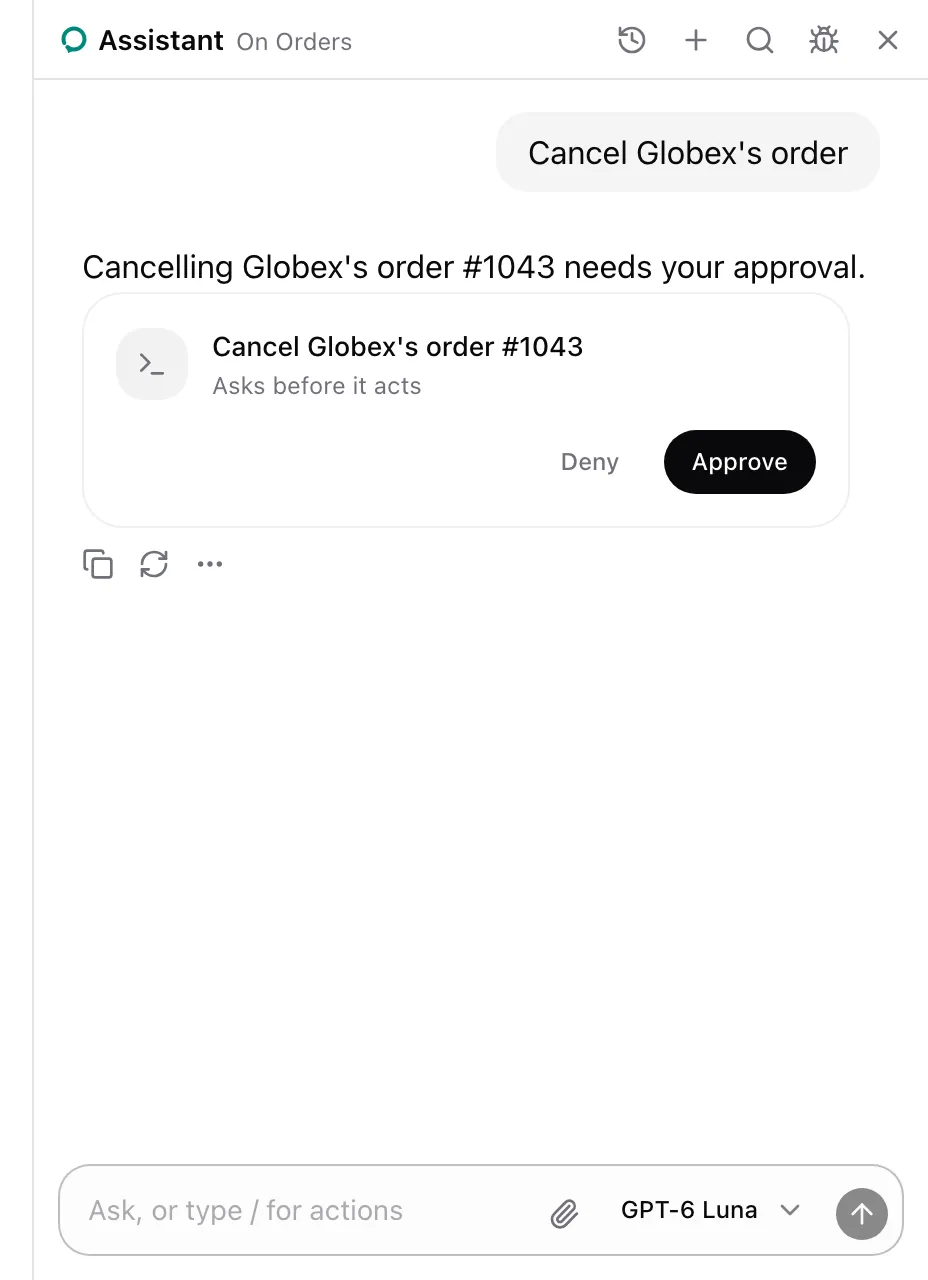
The confirm card asks the user in the conversation before an action with `consequential="confirm"`, or a tool with `consequential: true`, goes ahead. After the answer it stays as a receipt.
## Usage
The card shows for every consequential action or tool. From `examples/app/app/orders/page.tsx`:
{/* prettier-ignore */}
```tsx
```
## What the model sees
The action's entry ends with ` (asks first)`, so the model calls it and lets the panel ask. While the card waits, the call has no answer. The card's title is the picked row's label, `Cancel Globex's order #1043`. For a tool it is `question(args)`, or the tool's description without one.
## States
### Approved
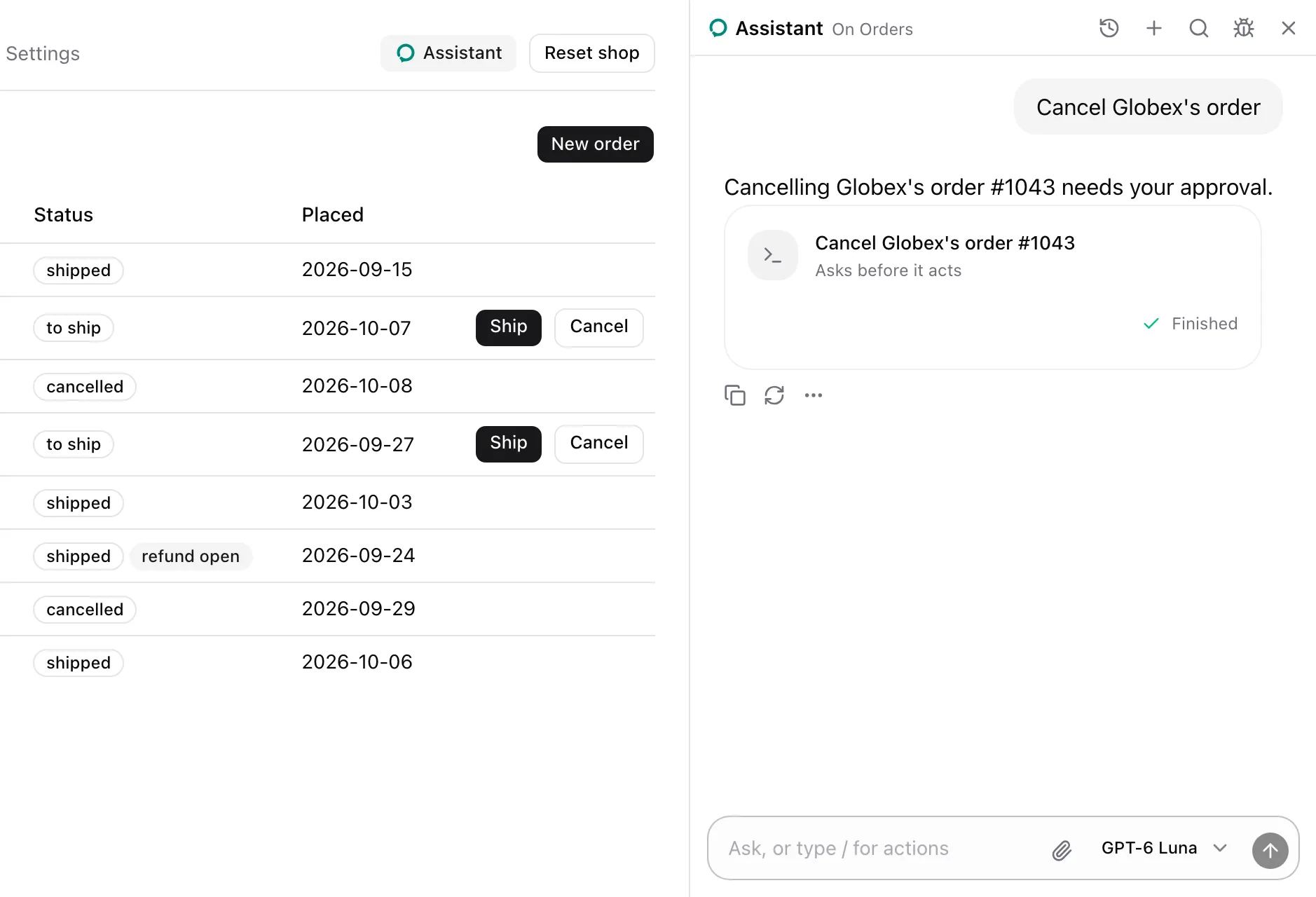
Approve checks the element again and presses it. The card reads "Approved, running", then "Finished". The call answers `Approved by the user and pressed "Cancel Globex's order #1043".` with the Orders note.
### Declined
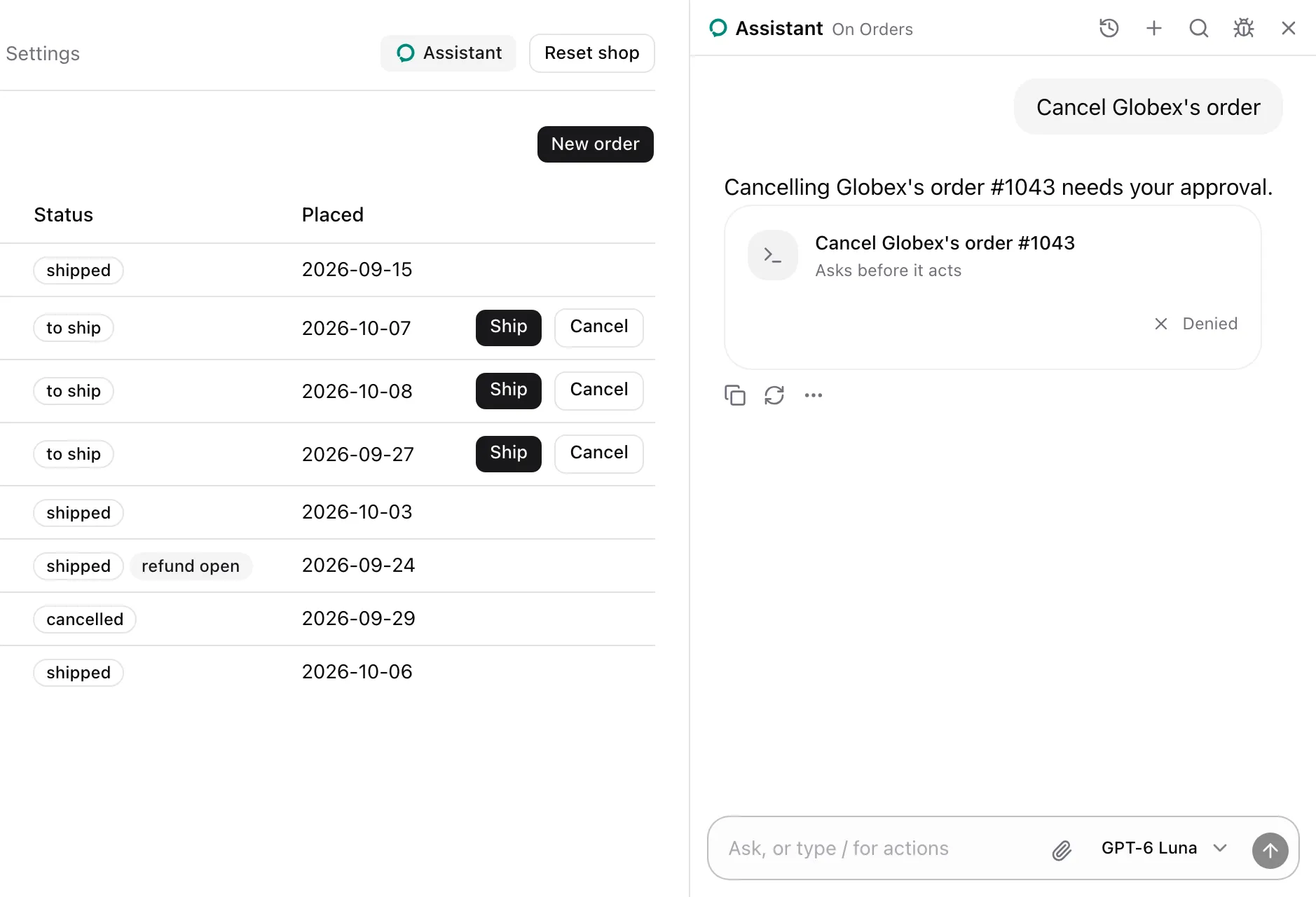
Deny presses nothing, and the card reads "Denied". The call answers `The user declined "Cancel Globex's order #1043". That is final: leave it unless they ask for it again.`
When the press fails after approval, the card reads "Didn't go through".
## Props
None. The package renders it for each consequential action or tool, inline in the conversation. Replace it for every one with `cards.confirm` on `AssistedProvider`, see [Swap a card](https://superassist.app/how-to/swap-a-card.md). A tool's own `render` replaces it for that tool. The card carries `data-slot="approval-card"`.
## See also
- [Make an action consequential](https://superassist.app/how-to/make-an-action-consequential.md).
- [Why consequential actions ring](https://superassist.app/explanation/consequential-actions.md).
---
# Choices card
> The card that asks the user a question with two to four answers they pick with one click.
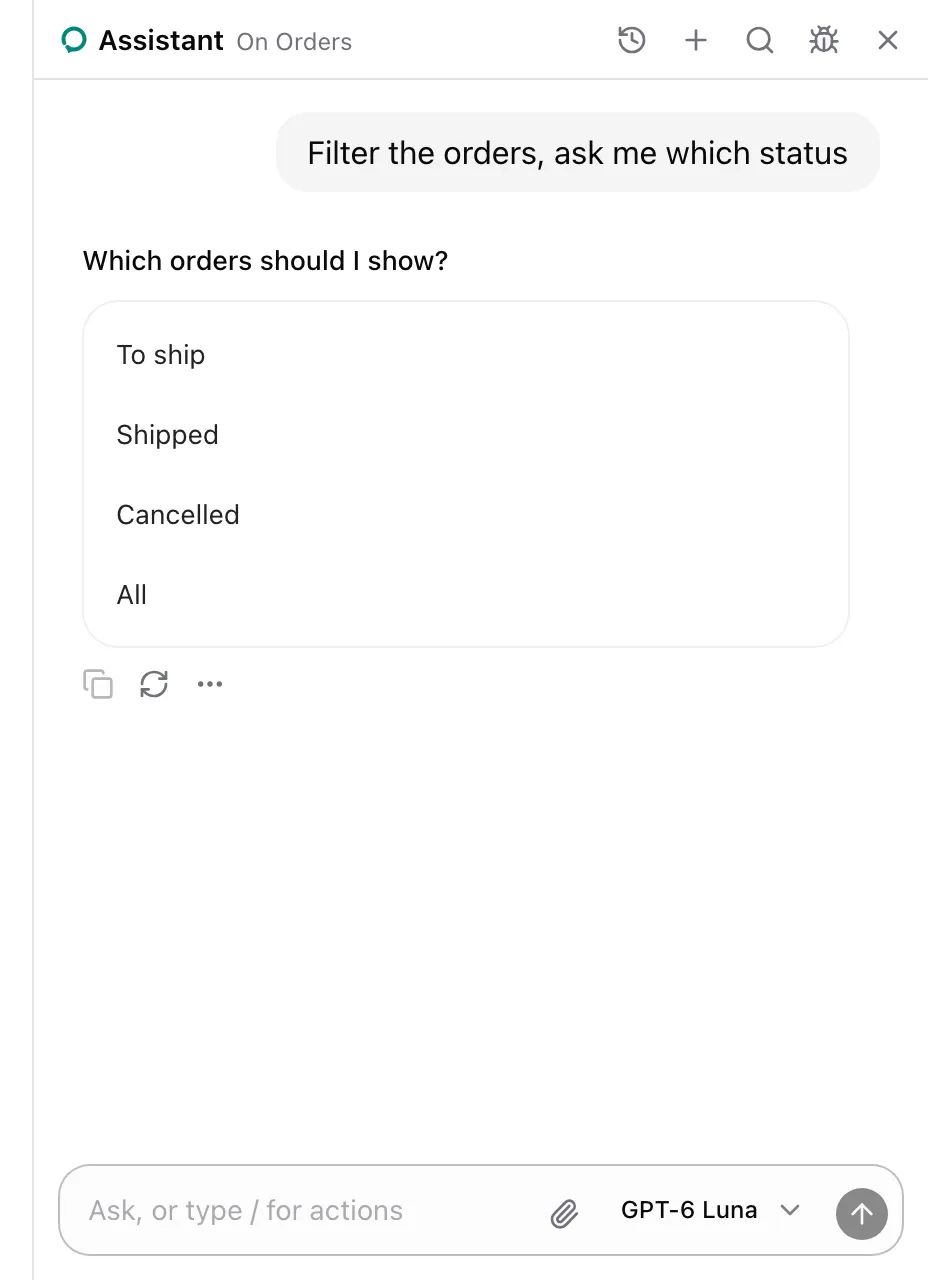
The choices card shows the question an `offer_choices` call asks, with two to four answers the user picks with one click. The pick is the call's answer.
## Usage
`AssistedProvider` lends `offer_choices` on every page. There is nothing to set up.
## What the model sees
`offer_choices` is described as:
```txt wrap
Ask the user a question with two to four short answers they pick with one click, and answer with their pick.
```
It takes `question`, a string, and `options`, two to four strings. The call waits for the pick.
## States
### Picked
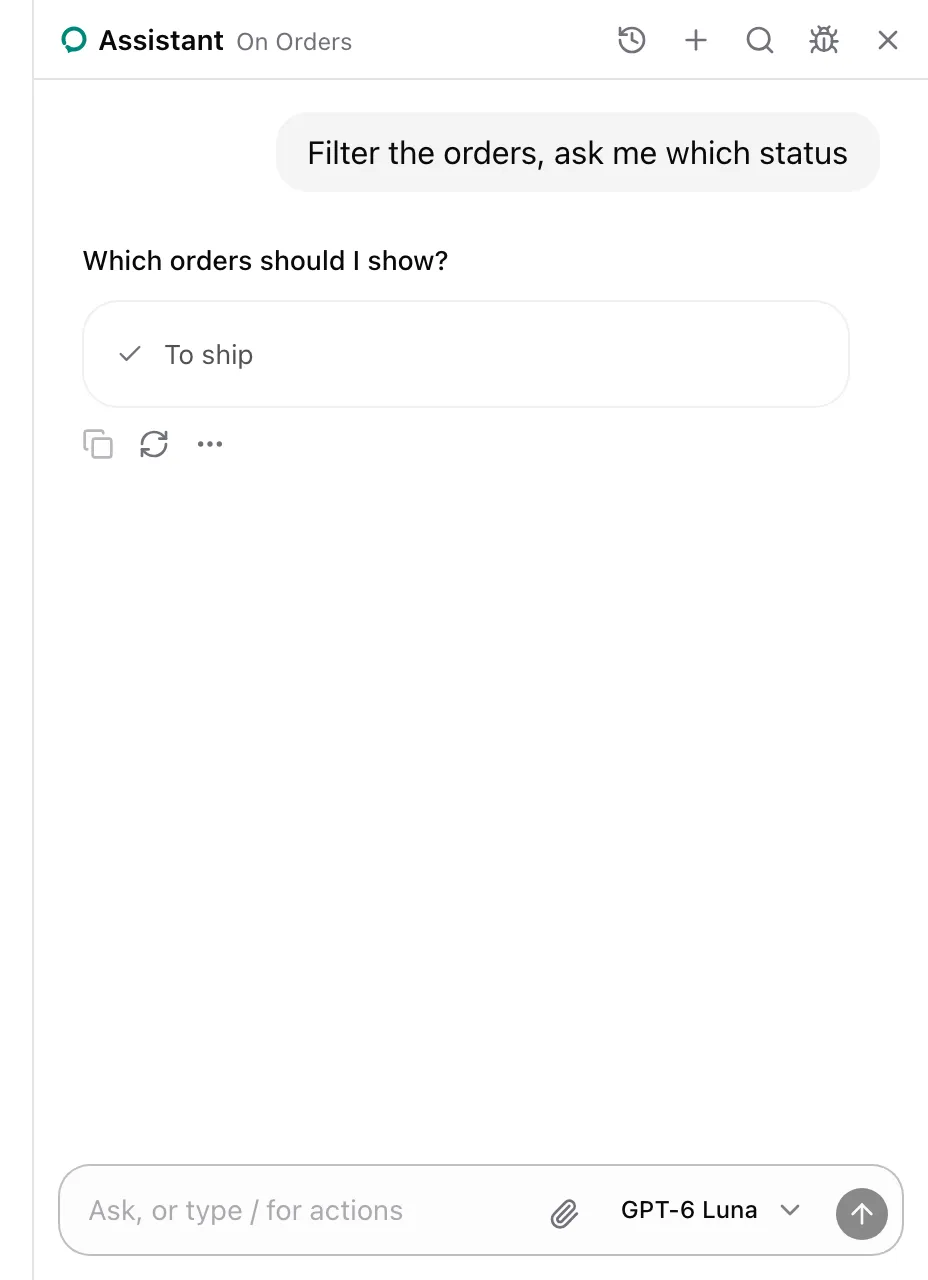
The pick answers the call with `The user picked "To ship".` The card stays in the conversation, showing only the pick with a check.
## Props
None. The package renders it in place of the `offer_choices` call. Replace it with `cards.choices` on `AssistedProvider`, see [Swap a card](https://superassist.app/how-to/swap-a-card.md). The card carries `data-slot="assisted-choices"`.
## See also
- [Model context](https://superassist.app/reference/model-context.md#built-in-tools) lists every built-in tool.
---
# Links card
> The card that shows the pages show_links offers to open, each with a title and a gist.
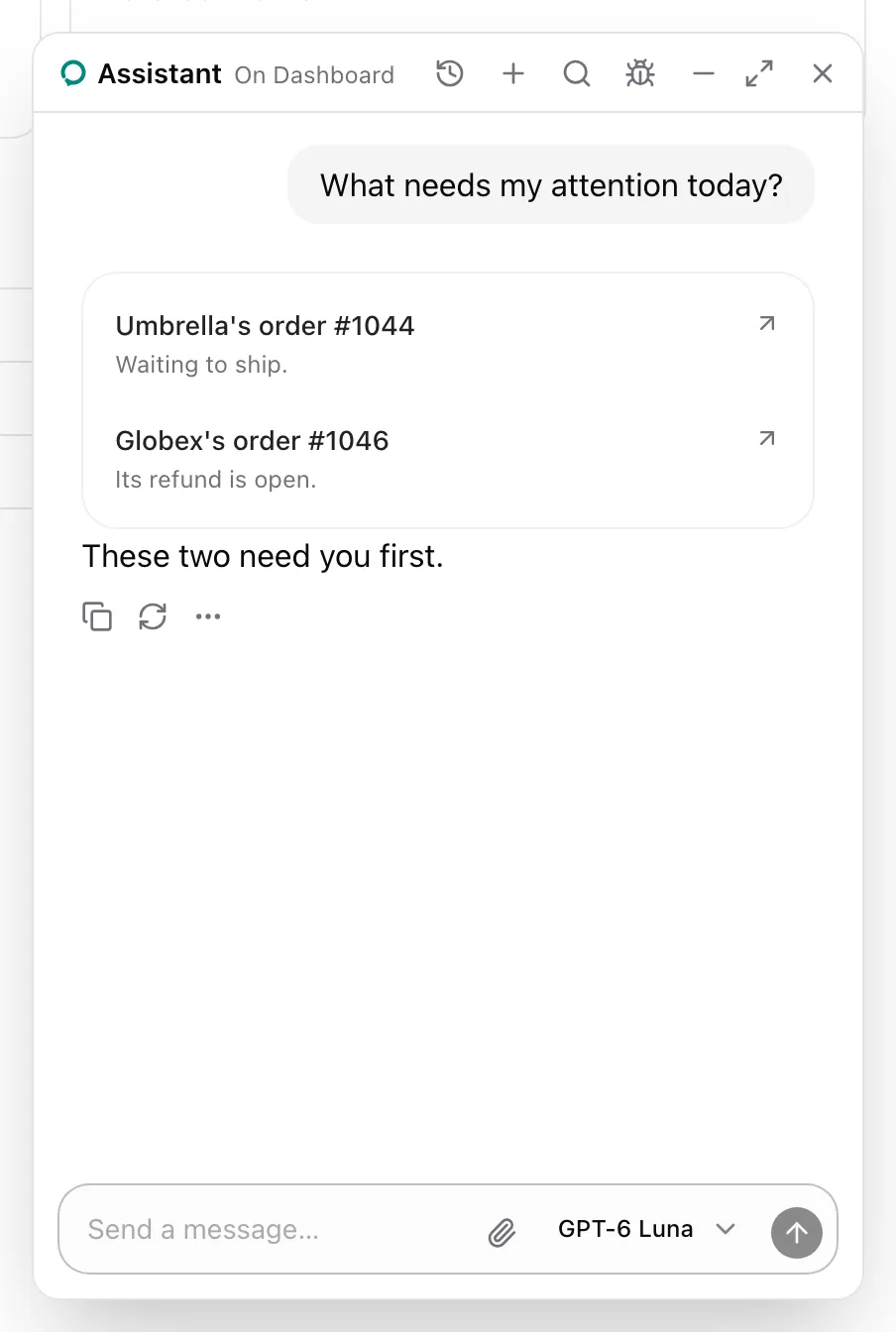
The links card shows the pages a `show_links` call offers, each with a title and a one-line gist. A click opens the page through the provider's `navigate`.
## Usage
`AssistedProvider` lends `show_links` when it has `destinations` and `navigate`, as in [Add `go_to_page`](https://superassist.app/how-to/add-go-to-page.md).
## What the model sees
`show_links` is described as:
```txt wrap
Show the user links to pages of the app, the pages go_to_page opens, each with a title and a one-line gist. A click opens the page.
```
It takes `items`, one or more of `{ to, id?, title, gist? }`, where `to` is a destination's name and `id` fills its `:id`. The call in the screenshot answered:
```txt wrap
Showed the user links to Umbrella's order #1044, Globex's order #1046.
```
An unknown page or a missing id answers with an error, and the card stays hidden.
## Props
None. The package renders it in place of the `show_links` call. Each link is an `a` with the page's path as its `href`. Replace it with `cards.links` on `AssistedProvider`, see [Swap a card](https://superassist.app/how-to/swap-a-card.md). The card carries `data-slot="assisted-links"`.
## See also
- [Add `go_to_page`](https://superassist.app/how-to/add-go-to-page.md) sets the destinations both tools use.
---
# Table card
> The card show_table renders, records of one kind as rows and the fields they share as columns.
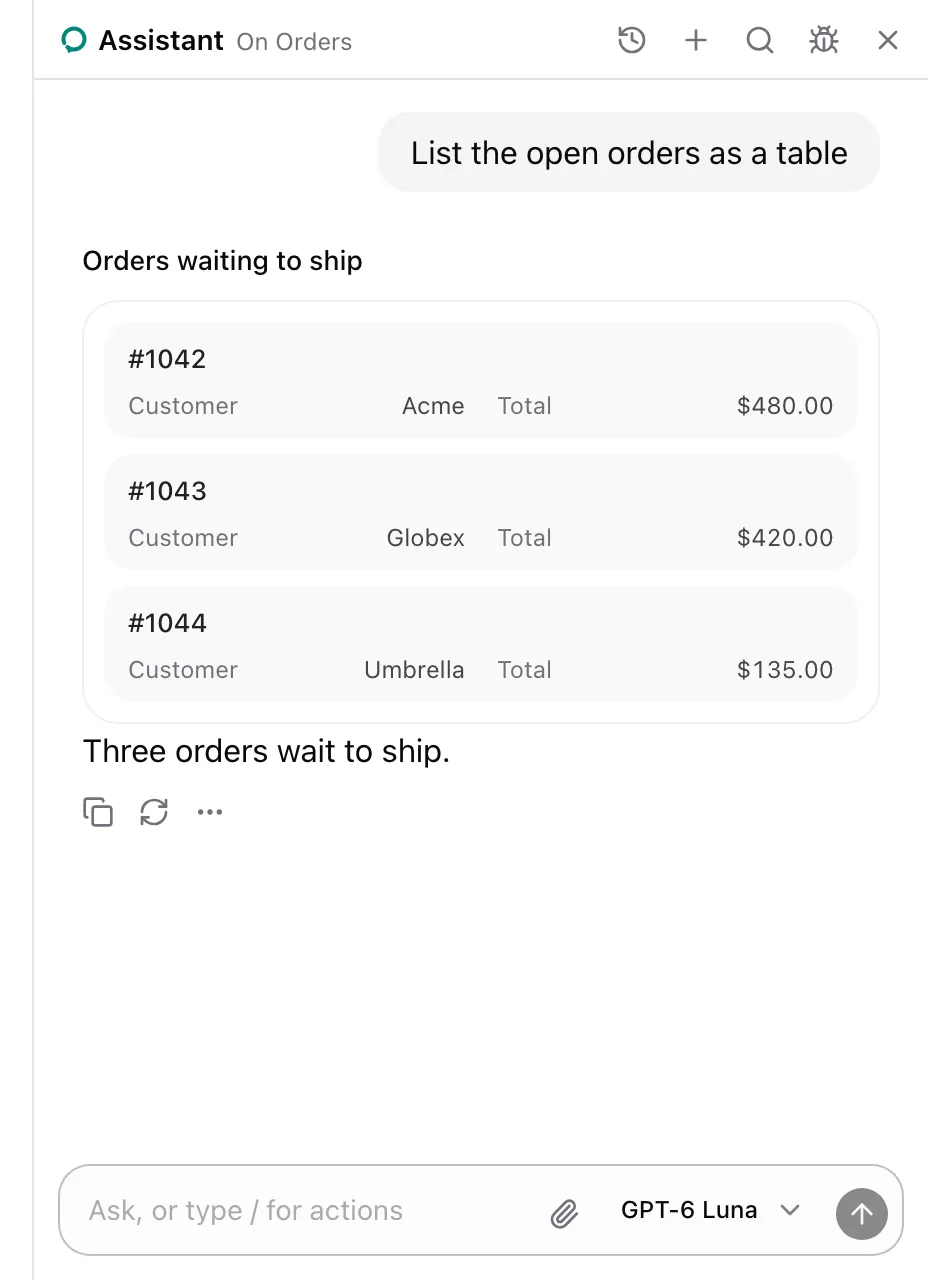
The table card lays out records of one kind: rows of the same shape, with the fields they share as columns. The assistant shows it with `show_table` when the user asks to see data laid out.
## Usage
`AssistedProvider` lends `show_table` on every page. There is nothing to set up. See [Show a table, a spec or a comparison](https://superassist.app/how-to/show-structured-answers.md).
## What the model sees
`show_table` is described as:
```txt wrap
Show the user a table: records of the same kind as rows, the fields they share as columns. For structured answers the user can scan, like a list of orders.
```
| Parameter | Type | Required |
| --------- | ------------------------------------------------------------------------------------------ | -------- |
| `title` | `string` | No |
| `columns` | One or more of `{ key: string; label: string }` | Yes |
| `rows` | `Record[]`, each a row's values by column key | Yes |
The call answers `Showed the user a table.` It changes nothing on the page.
## Props
None. The package renders it in place of the `show_table` call: the title, then the table with the title as its caption. Replace it with `cards.table` on `AssistedProvider`, see [Swap a card](https://superassist.app/how-to/swap-a-card.md). The card carries `data-slot="assisted-table"`.
## See also
- [Spec card](https://superassist.app/components/cards/spec-card.md) for one thing's properties.
- [Comparison card](https://superassist.app/components/cards/comparison-card.md) for two or three options side by side.
---
# Spec card
> The card show_spec renders, one thing's properties as label and value rows.
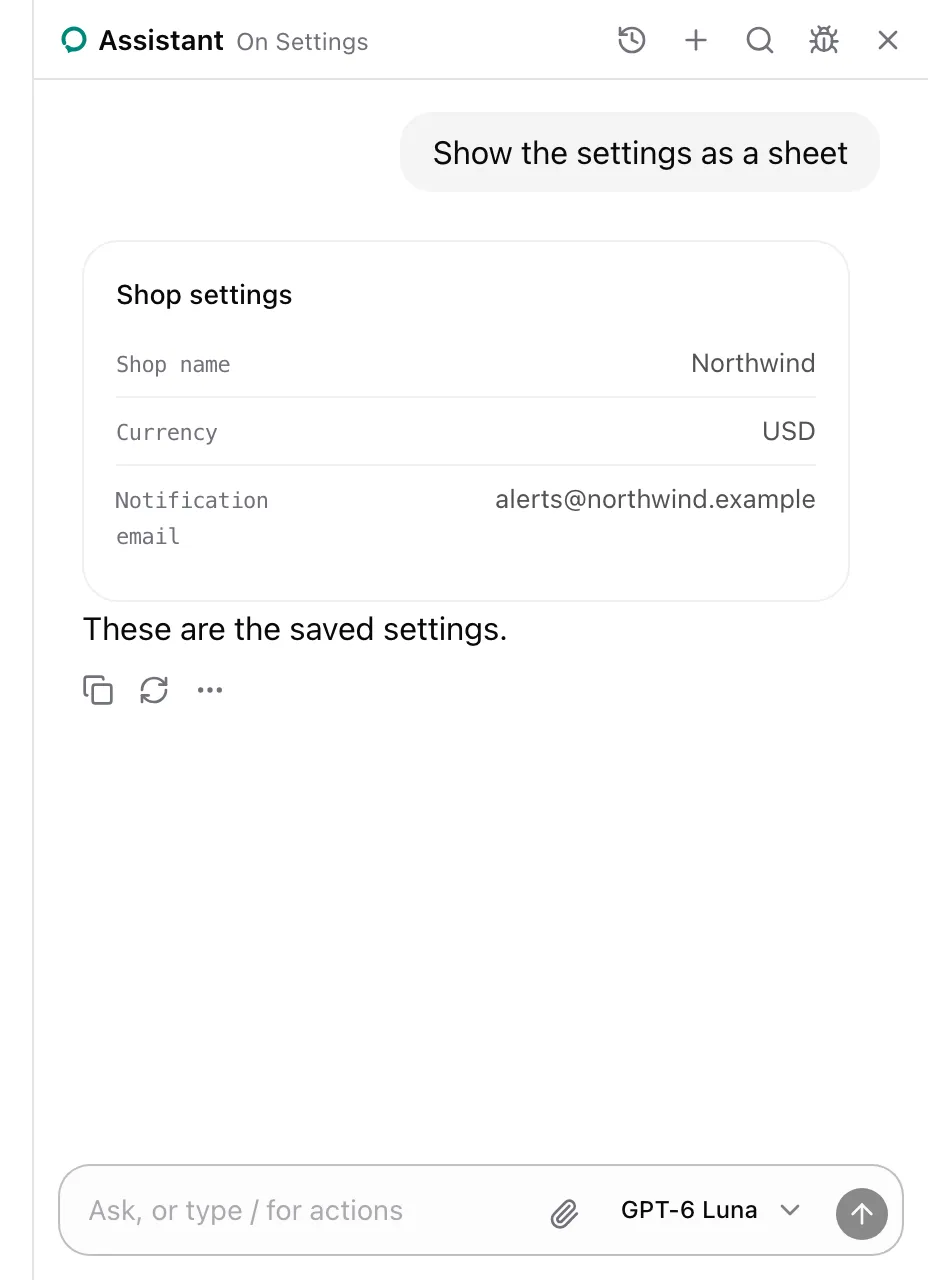
The spec card lays out one thing's properties as label and value rows, like an order's details or a page's settings. The assistant shows it with `show_spec` when the user asks to see data laid out.
## Usage
`AssistedProvider` lends `show_spec` on every page. There is nothing to set up. See [Show a table, a spec or a comparison](https://superassist.app/how-to/show-structured-answers.md).
## What the model sees
`show_spec` is described as:
```txt wrap
Show the user a spec sheet: one thing's properties as label and value rows. For structured answers the user can scan, like an order's details or a page's settings.
```
| Parameter | Type | Required |
| --------- | ------------------------------------------------- | -------- |
| `title` | `string` | Yes |
| `rows` | One or more of `{ label: string; value: string }` | Yes |
The call answers `Showed the user a spec sheet.` It changes nothing on the page.
## Props
None. The package renders it in place of the `show_spec` call, every row shown. Replace it with `cards.spec` on `AssistedProvider`, see [Swap a card](https://superassist.app/how-to/swap-a-card.md). The card carries `data-slot="spec-sheet"`.
## See also
- [Table card](https://superassist.app/components/cards/table-card.md) for several records of one kind.
---
# Comparison card
> The card show_comparison renders, two or three options side by side on the same traits, with the one the assistant recommends.
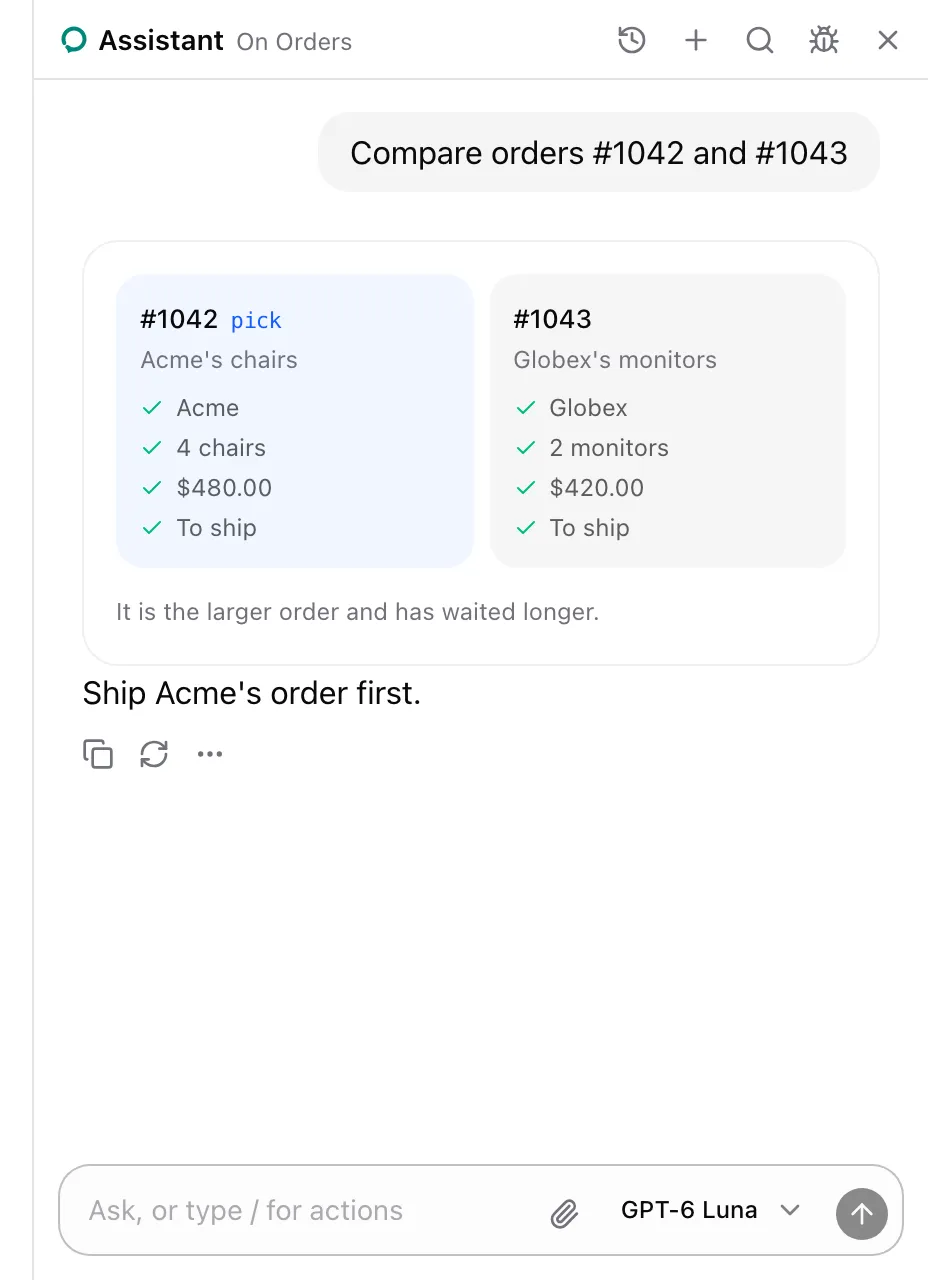
The comparison card puts two or three options side by side on the same traits, marks the one the assistant recommends, and says why. The assistant shows it with `show_comparison` when the user asks to compare.
## Usage
`AssistedProvider` lends `show_comparison` on every page. There is nothing to set up. See [Show a table, a spec or a comparison](https://superassist.app/how-to/show-structured-answers.md).
## What the model sees
`show_comparison` is described as:
```txt wrap
Show the user two or three options side by side on the same traits, with the one you recommend and why. For structured answers the user can scan, like comparing two orders.
```
| Parameter | Type | Required |
| ------------- | --------------------------------------------------------------------------------------------------------------------------- | -------- |
| `traits` | One or more strings, the traits' names | Yes |
| `options` | Two or three of `{ name: string; headline: string; traits: string[] }`, `traits` the option's value for each trait in order | Yes |
| `recommended` | `string`, the name of the recommended option | Yes |
| `reason` | `string`, one sentence on why | Yes |
The call answers `Showed the user a comparison.` It changes nothing on the page.
## Props
None. The package renders it in place of the `show_comparison` call. Replace it with `cards.comparison` on `AssistedProvider`, see [Swap a card](https://superassist.app/how-to/swap-a-card.md). The card carries `data-slot="comparison-card"`.
## See also
- [Table card](https://superassist.app/components/cards/table-card.md) for more than three records.
---
# Sources card
> The card under an answer that cites the knowledge base passages the agent's searches found, one numbered chip per source.
The sources card cites what the agent read in its knowledge bases. It sits under the assistant's answer as a row of numbered chips, one per source, and a click on a chip opens its passages with the source's title, domain and knowledge base. A web page's chip has a link icon and an Open link; a file's chip has a document icon and no link.
## Usage
There is nothing to set up. The card shows for the `search_knowledge` calls of an agent with knowledge bases on Super Assist. The search runs on the server, so the package lends no tool for it; it only renders the calls.
## What the card shows
Every `search_knowledge` call of a message goes into one card, after the message's last text. Passages of the same page, or of the same file, become one chip, in the order the searches returned them. While a search runs, the card is a skeleton row in the same place.
Each call answers the model with its passages, best match first:
```ts
type Answer = {
passages: {
knowledgeBase: string;
title: string; // a web page's title, or a file's name
url: string | null; // a web page's address; a file has none
score: number; // from 0 to 1
text: string;
}[];
};
```
The agent's prompt asks it to answer from the passages and to cite no source the search did not return, so the chips match the answer.
## Props
None. The package renders it under the answer. Replace it with `cards.sources` on `AssistedProvider`, see [Swap a card](https://superassist.app/how-to/swap-a-card.md). Your card gets the last call's props, with `result.passages` holding every call's passages and `status` running while any call runs. The card carries `data-slot="sources"`.
`Sources` renders the same chips from a `passages` array and a `searching` flag, for a card of your own.
## See also
- [Links card](https://superassist.app/components/cards/links-card.md) for pages of the app to open.
---
# AssistedProvider
> Wraps the app in the runtime and lends what every page shares, with the cards that show its tools. With useAssisted.
`AssistedProvider` lends what every page shares: the universal instructions, `offer_choices`, the show tools `show_table`, `show_spec` and `show_comparison`, and `go_to_page` and `show_links` when it has destinations. It holds the cards those tools render. `useAssisted` reads and drives the panel's open state.
## Usage
Give it the runtime from `useAssistedRuntime` and wrap the app. From `examples/app/app/assistant.tsx`:
```tsx
const runtime = useAssistedRuntime({
key: process.env.NEXT_PUBLIC_SUPER_ASSIST_KEY!,
host: process.env.NEXT_PUBLIC_SUPER_ASSIST_HOST,
});
router.push(withMode(path))}
>
{children};
```
`destinations` names the pages `go_to_page` opens. From the same file:
```ts
const destinations = {
home: "/",
orders: "/orders",
order: "/orders/:id",
customers: "/customers",
settings: "/settings",
};
```
## What the model sees
Every request's system text holds the universal instructions, quoted in [Model context](https://superassist.app/reference/model-context.md#universal-instructions). With the example's destinations, `go_to_page` is described as:
```txt wrap
Open a page of the app for the user and answer, once it has loaded, with the page section of the page it opened. The pages and their paths: home /, orders /orders, order /orders/:id, customers /customers, settings /settings.
```
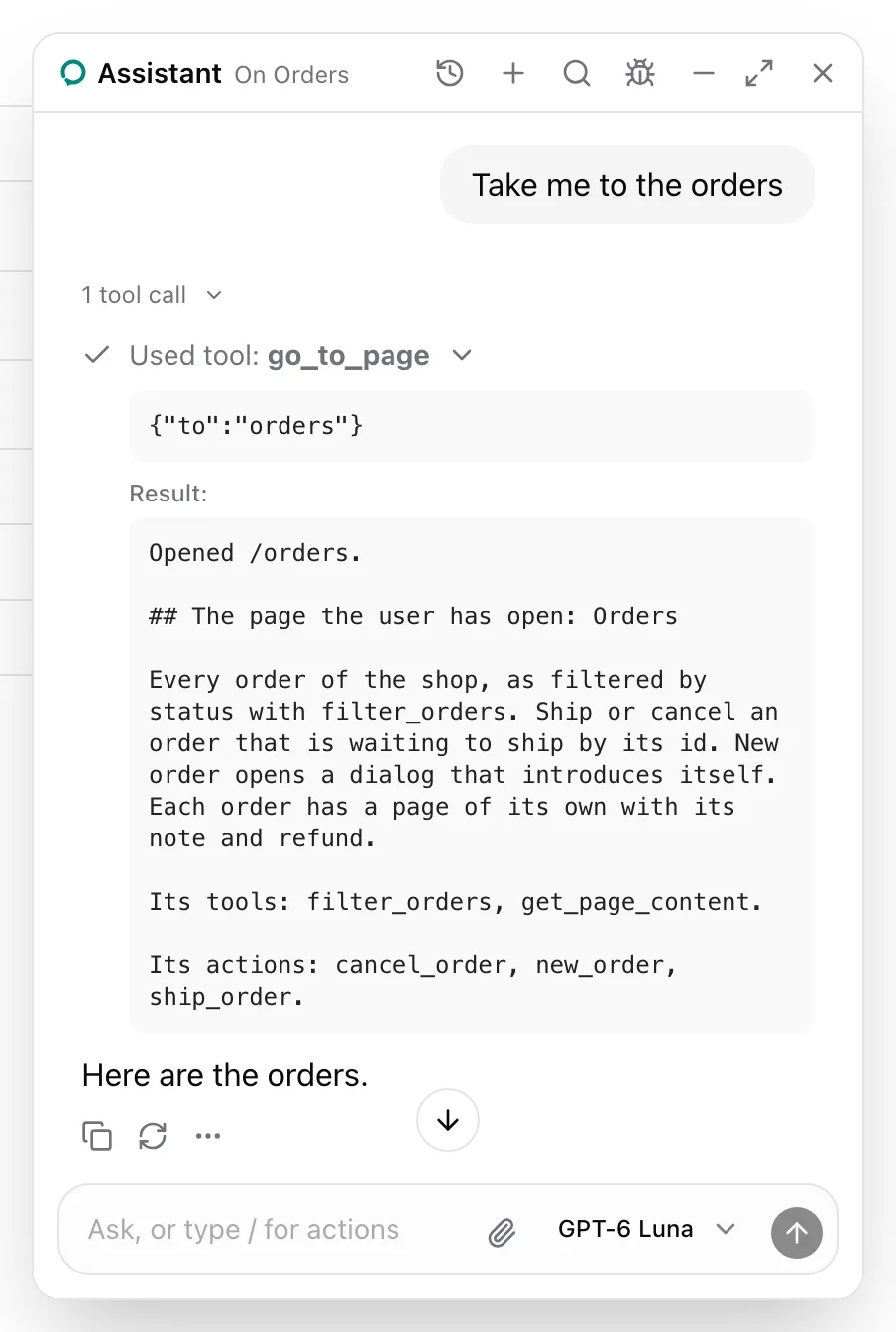
The call in the screenshot answered with the path it opened and the note of the page there:
```md wrap
Opened /orders.
## The page the user has open: Orders
Every order of the shop, as filtered by status with filter_orders, and charted by status with chart_orders. Ship or cancel an order that is waiting to ship by its id. New order opens a dialog that introduces itself. Each order has a page of its own with its note and refund.
Its tools: filter_orders, chart_orders, get_page_content.
Its actions: cancel_order, new_order, ship_order.
```
`show_links`, `offer_choices` and the show tools render cards, each on its own page under [Cards](https://superassist.app/components.md#cards).
## Props
| Prop | Type | Required | Description |
| ------------------------- | --------------------------- | -------- | ------------------------------------------------------------------- |
| `runtime` | `AssistantRuntime` | Yes | The runtime from `useAssistedRuntime`. |
| `destinations` | `Record` | No | Page names to paths. `:id` in a path takes an id. |
| `destinationsDescription` | `string` | No | Replaces the pages and their paths in `go_to_page`'s description. |
| `navigate` | `(path: string) => unknown` | No | Opens a path. `go_to_page` awaits it. |
| `starters` | `string[]` | No | First messages the empty state suggests on a page without its own. |
| `cards` | `AssistedCards` | No | Cards that replace the package's, by tool. See below. |
| `trace` | `boolean` | No | Shows every press and fill on the page with a ring. Off by default. |
| `children` | `ReactNode` | Yes | The app. |
- Renders `AssistantRuntimeProvider` with `runtime`.
- Lends the universal instructions, `offer_choices`, `show_table`, `show_spec` and `show_comparison`.
- Lends `go_to_page` and `show_links` only when both `destinations` and `navigate` are given.
- Renders the agent's `search_knowledge` calls as the sources card under the answer, without lending a tool.
- Answers calls to tools and actions that have left with `{ error }` and the open page's note.
- Stamps each user message with the id of the tab that sent it, in `metadata.custom.tab`, and runs a call only in that tab. Other tabs wait for its result.
- Holds the panel's open state, closed at first.
- With `trace`, a press or fill flashes a ring on its element for a second, and a `"confirm"` action keeps the ring on its element while the panel asks. An action or field sets its own `trace` to differ.
- `AssistedPage`, `AssistedAction`, `AssistedInput`, `AssistedField`, `useAssistedTool`, `useAssisted`, the panel and the devtools render inside it.
## AssistedCards
`cards` maps a card to the component that replaces it. Each is optional, and each takes the default card's props: the tool call's `args`, `result`, `isError`, and while it waits, `interrupt` and `resume`.
| Key | Replaces | `args` |
| ------------ | ------------------------------------------------------------------------------------------ | --------------------------------------------------- |
| `confirm` | The [confirm card](https://superassist.app/components/cards/confirm-card.md) of every consequential action and tool | Any. `interrupt.payload` is `{ name, label, id? }`. |
| `choices` | The [choices card](https://superassist.app/components/cards/choices-card.md) | `{ question, options }` |
| `links` | The [links card](https://superassist.app/components/cards/links-card.md) | `{ items }` |
| `table` | The [table card](https://superassist.app/components/cards/table-card.md) | `{ title?, columns, rows }` |
| `spec` | The [spec card](https://superassist.app/components/cards/spec-card.md) | `{ title, rows }` |
| `comparison` | The [comparison card](https://superassist.app/components/cards/comparison-card.md) | `{ traits, options, recommended, reason }` |
| `sources` | The [sources card](https://superassist.app/components/cards/sources-card.md) under an answer | `{ query, knowledgeBase? }` |
A `confirm` card answers with `resume({ approved: boolean })`, and a `choices` card with `resume(option)`.
## useAssisted
```ts
useAssisted(): {
isOpen: boolean;
open: (message?: string) => void;
close: () => void;
page: string | undefined;
}
```
| Field | Description |
| ---------------- | ------------------------------------------------------------------------ |
| `isOpen` | Whether the floating or sheet panel is open. |
| `open(message?)` | Opens the panel. With a message, appends it to the thread as the user's. |
| `close()` | Closes the panel. |
| `page` | The open assisted page's name, or `undefined`. |
Throws `Render this inside an AssistedProvider` outside the provider. The panel's header reads `page`, and [`AssistedPanel.Trigger`](https://superassist.app/components/panel/roots-and-window.md#leaf-props) toggles `isOpen`.
## See also
- [Use the hosted runtime](https://superassist.app/how-to/use-the-hosted-runtime.md) for the options of the runtime it takes.
- [Swap a card](https://superassist.app/how-to/swap-a-card.md) sets `cards`.
- [Add `go_to_page`](https://superassist.app/how-to/add-go-to-page.md) sets `destinations` and `navigate`.
- [How model context composes](https://superassist.app/explanation/model-context.md) explains what it lends and when.
---
# AssistedPage
> Introduces a page, or a dialog over it, to the assistant, with its name, its instructions and its content on demand.
`AssistedPage` lends a page's note, its name and instructions in every request, and `get_page_content`, which answers with what the page shows when the assistant asks.
## Usage
Wrap the page's content. From `examples/app/app/orders/[id]/page.tsx`:
```tsx
(row ? { ...row, note: order!.note, noteField: draft } : `No order #${id}.`)}
>
{order && row ? (
) : (
No order #{id}.
)}
```
## What the model sees
The open page's note, read when a message is sent. Order #1045's:
```md wrap
## The page the user has open: Order #1045
One order: its customer, items, total, status, refund and note. note fills the note field without saving it, and save_note saves what the field holds.
Its tools: get_page_content.
Its actions: refund_order, save_note.
Its fields: note: The order's note, now "".
```
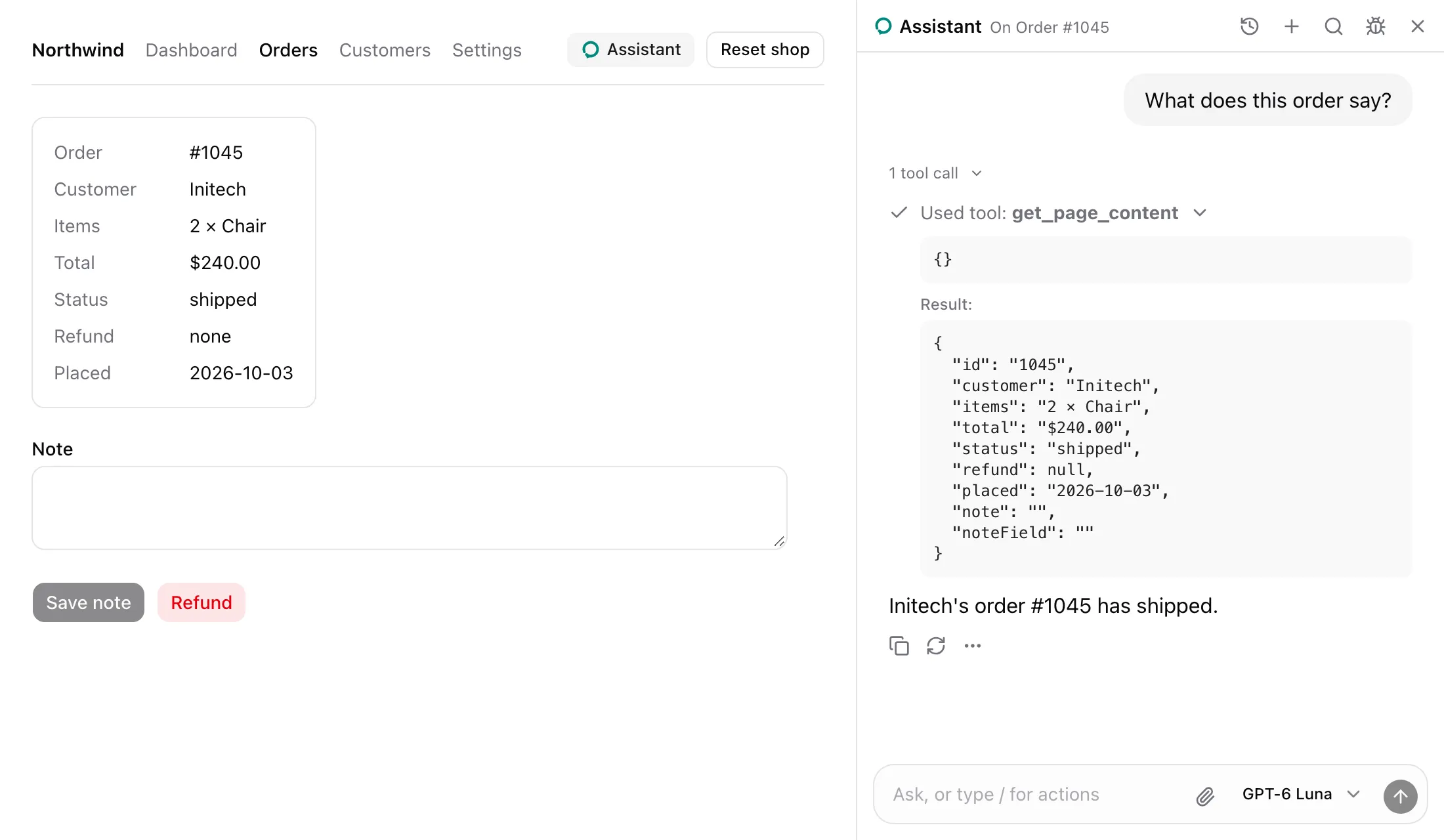
The note never holds the content. `get_page_content` is described as:
```txt wrap
What the page the user has open shows right now. Call it first for anything about this page.
```
It answers with `content` as it is at the call, as the screenshot shows.
## States
### A dialog over the page
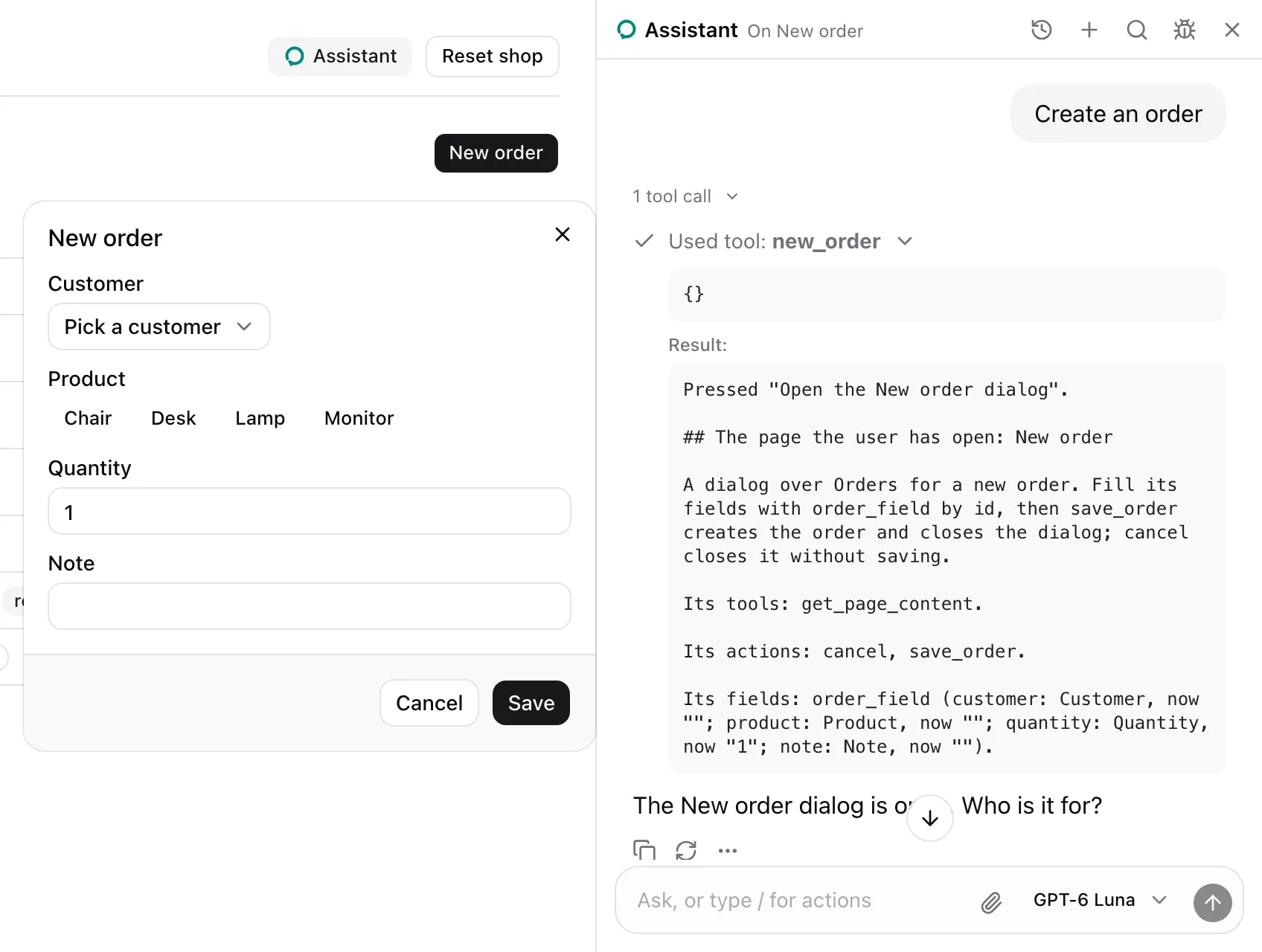
The New order dialog is an `AssistedPage` of its own. Mounted last, it is the page the user has open: the header reads On New order, and pressing `new_order` answered with the dialog's note.
```md wrap
Pressed "Open the New order dialog".
## The page the user has open: New order
A dialog over Orders for a new order. Fill its fields with order_field by id, then save_order creates the order and closes the dialog; cancel closes it without saving.
Its tools: get_page_content.
Its actions: cancel, save_order.
Its fields: order_field (customer: Customer, now ""; product: Product, now ""; quantity: Quantity, now "1"; note: Note, now "").
```
When the dialog closes, Orders is the open page again.
## Props
| Prop | Type | Required | Description |
| -------------- | ---------------------------- | -------- | ---------------------------------------------------------------------------------- |
| `name` | `string \| (() => string)` | Yes | The page's name. |
| `instructions` | `string \| (() => string)` | Yes | How to work on the page. |
| `content` | `unknown \| (() => unknown)` | No | What the page shows. Read when `get_page_content` is called. |
| `starters` | `string[]` | No | First messages the panel's empty state suggests on this page. Over the provider's. |
| `children` | `ReactNode` | No | The page. Tools, actions and fields under it belong to it. |
- The page the user has open is the last mounted `AssistedPage`, ordered by first render.
- Only the open page lends its note and `get_page_content`. The note is read at send time.
- `get_page_content` is lent only when `content` is given.
- A function prop is read each time it is needed, so it sees current state.
- `useAssistedTool` calls under the page are its tools. `AssistedAction` elements under it are its actions. `AssistedInput` and `AssistedField` elements under it are its fields. All leave when it unmounts.
- A page under the open one keeps its tools, actions and fields lent, but no note names them.
## See also
- [Make a page assisted](https://superassist.app/how-to/make-a-page-assisted.md), dialogs included.
- [Why content is read on demand](https://superassist.app/explanation/content-on-demand.md).
- [Model context](https://superassist.app/reference/model-context.md#the-page-note) gives the note's template.
---
# AssistedAction
> Lends an element of an assisted page as an action the assistant presses, rings or asks about. With useAssistedAction, ring and useRing.
`AssistedAction` lends one element of an assisted page as an action: the assistant presses it, or, when it is consequential, rings it for the user or asks in the panel first. `useAssistedAction` is the hook behind it, and `ring` and `useRing` point at any element.
## Usage
Give each row the same `name` and its own `id`. From `examples/app/app/orders/page.tsx`:
```tsx
```
## What the model sees
Same-name actions on a page are one tool that picks a row by `id`. With the shop's seed data, `ship_order` is described as:
```txt wrap
Press one of these by its id. 1042: Ship Acme's order #1042; 1043: Ship Globex's order #1043; 1044: Ship Umbrella's order #1044
```
It takes `{ id }`, an enum of `1042`, `1043` and `1044`, and the Orders note lists it under `Its actions:`. A consequential action carries a marker. `cancel_order`, with `consequential="confirm"`:
```txt wrap
Press one of these by its id. 1042: Cancel Acme's order #1042 (asks first); 1043: Cancel Globex's order #1043 (asks first); 1044: Cancel Umbrella's order #1044 (asks first)
```
`refund_order` on an order's page, with `consequential`:
```txt wrap
Refund this order (consequential)
```
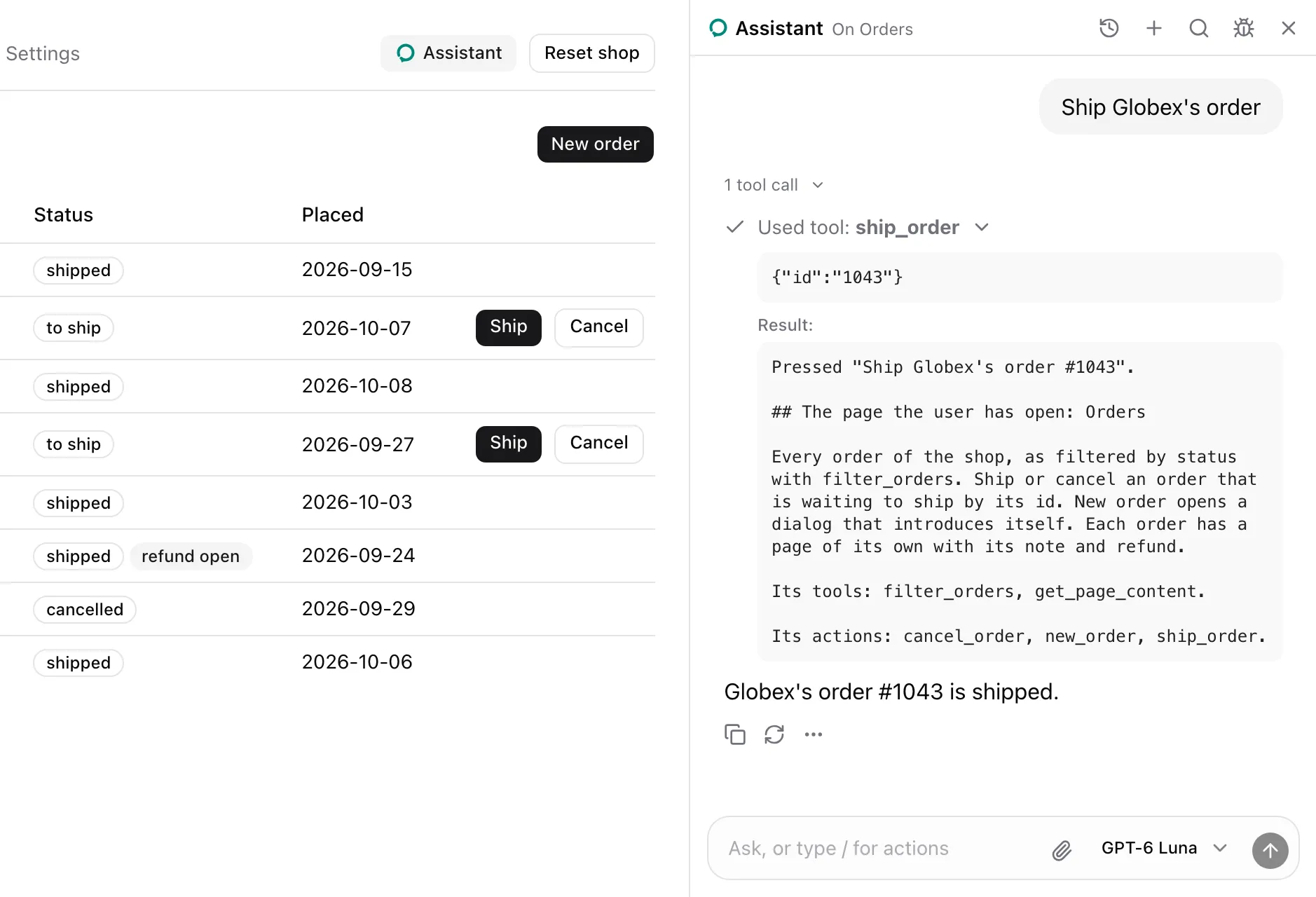
The press in the screenshot answered with its label and the page as the press left it:
```md wrap
Pressed "Ship Globex's order #1043".
## The page the user has open: Orders
```
The Orders note follows in full. Every answer is listed in [Model context](https://superassist.app/reference/model-context.md#action-answers).
## States
### Rung
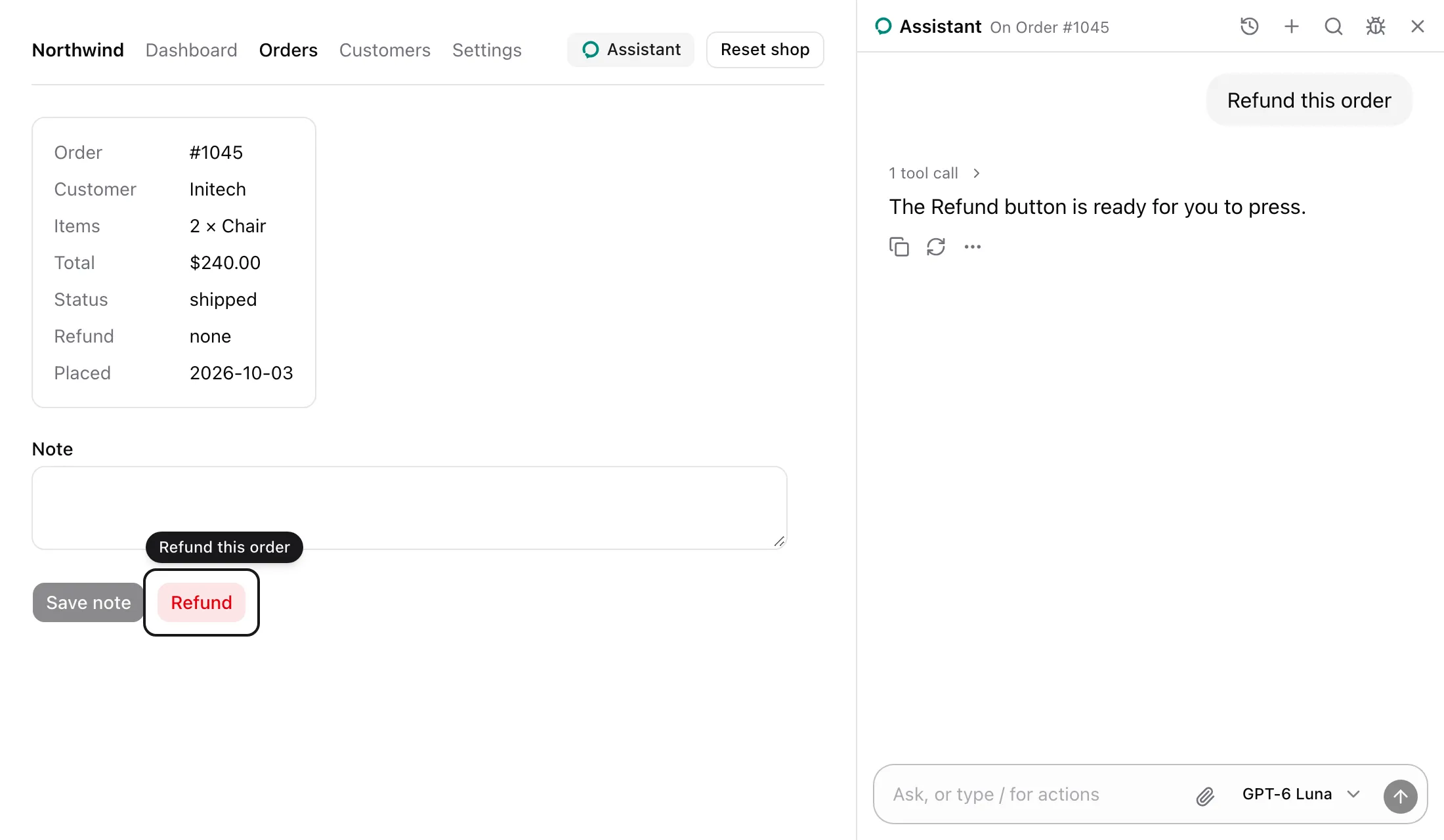
With `consequential`, a call rings the element and presses nothing. It answers `Rang "Refund this order" for the user; pressing it is theirs.`
### Asking
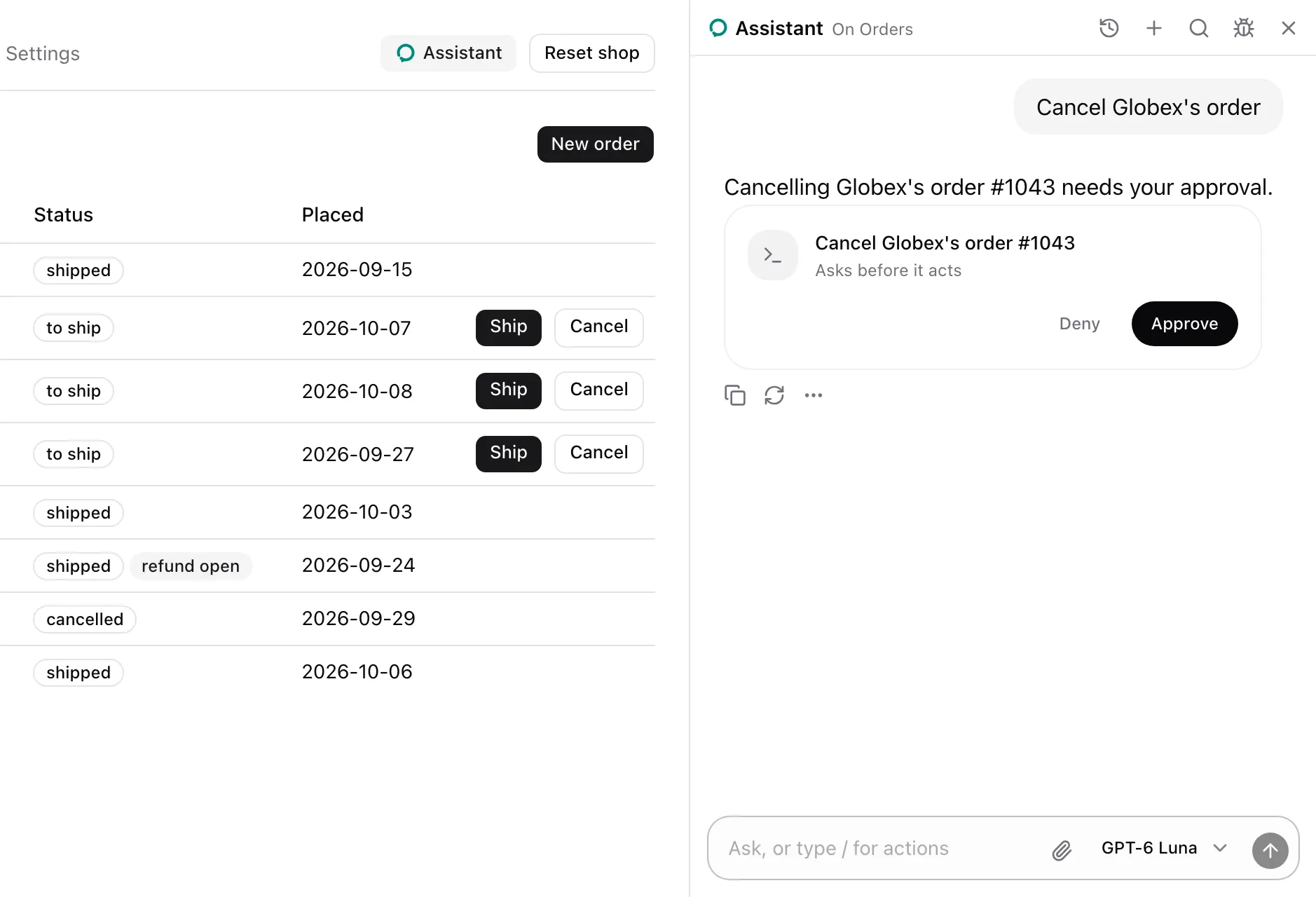
With `consequential="confirm"`, a call asks in the panel with the picked row's label. The [Confirm card](https://superassist.app/components/cards/confirm-card.md) shows the question, and nothing is pressed while it waits.
### Declined

Deny presses nothing, and the card stays as a receipt that reads Denied. The call answers `The user declined "Cancel Globex's order #1043". That is final: leave it unless they ask for it again.`
### Disabled
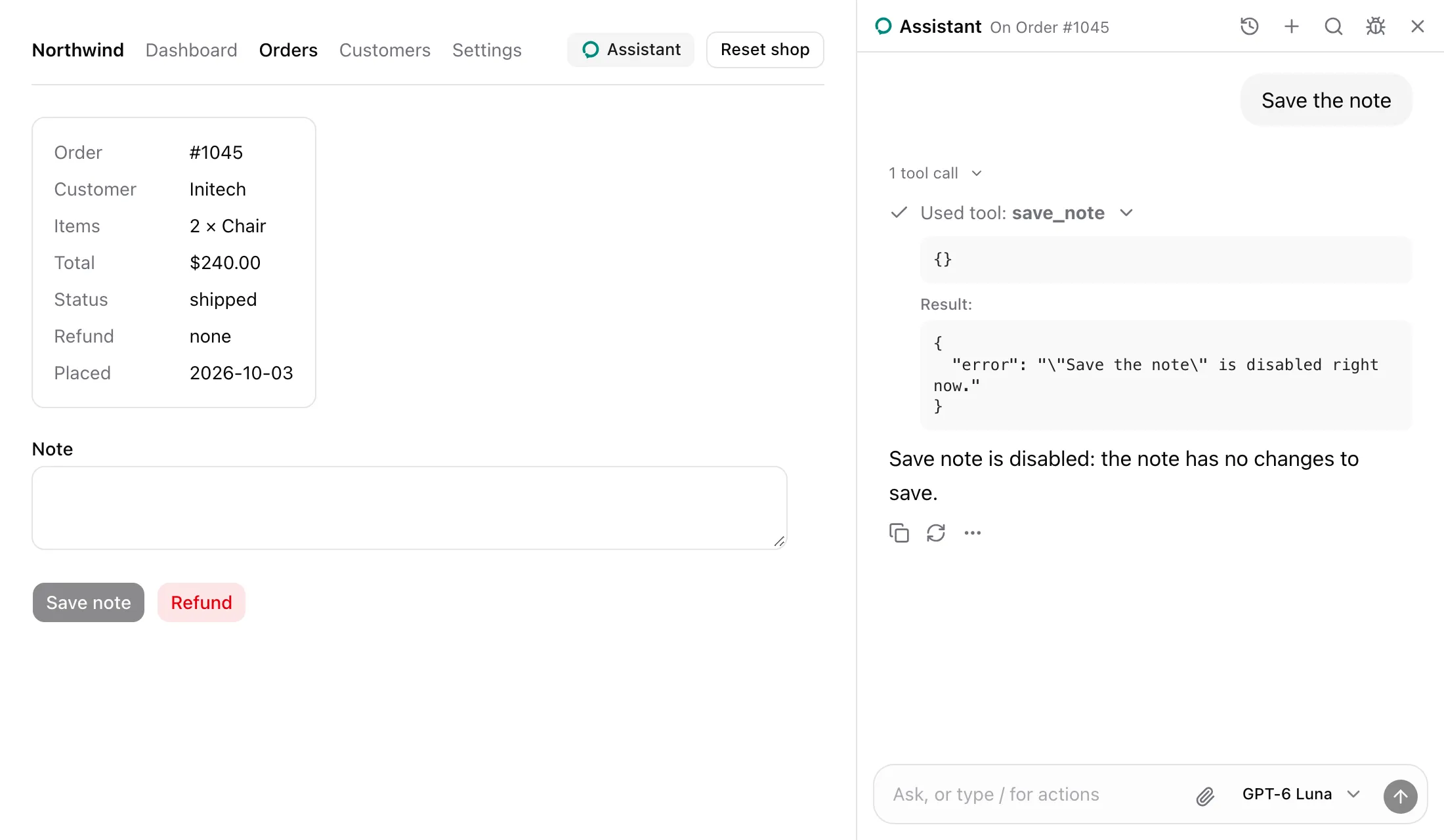
A disabled element is not clicked. The call answers `{ error: '"Save the note" is disabled right now.' }`.
## Props
| Prop | Type | Required | Description |
| --------------- | ---------------------- | -------- | ----------------------------------------------------------------------------------- |
| `name` | `string` | Yes | The action's name. Same-name actions on one page are one tool. |
| `label` | `string` | Yes | What pressing does. Becomes the tool's description, or one entry of it. |
| `id` | `string` | No | The row's id within a same-name group. |
| `consequential` | `boolean \| "confirm"` | No | `true` rings the element for the user. `"confirm"` asks in the panel, then presses. |
| `trace` | `boolean` | No | Shows the press on the page with a ring. Defaults to the provider's `trace`. |
| `children` | `ReactElement` | Yes | One element whose `ref` reaches a DOM element. Its own `ref` is kept. |
- Throws `Render an assisted action inside an AssistedPage` outside a page.
- Without ids, the tool's description is the label with its marker, and it takes no parameters.
- With ids, the tool takes `{ id }` with an enum of the mounted rows' ids. Its description reads `Press one of these by its id.` followed by `: